

A payment link is a URL that takes customers directly to a unique payment page to complete a payment. With Solidgate, you can quickly create a payment link URL and embed it or share it via email.
Solidgate Payment Link supports the latest three major versions of popular browsers, including Chrome, Chrome Mobile, Firefox, Safari, and more.Solidgate Payment Links are code-free and reusable, allowing you to share them as many times as needed.
- Handling submissions
The system handles payment submissions via the Payment Link securely and efficiently, ensuring the data is processed accurately and promptly. - Retry mechanism
The retry mechanism for declined payments is integrated into the payment process, allowing customers to immediately try the payment again, offering convenience and reducing the potential for abandoned transactions.
Manage payment link
You can create and customize payment links using the API or Hub. You need to provide transaction details, adjusting the appearance, and managing options such as editing, duplicating, or deleting links as needed.
All your created payment links are available on the Payment links page, where you can seamlessly perform the required actions.
Create payment link
API Create link API v1 request includes essential details, such as order amount, currency, and payment type. Customize the appearance of the payment link with options like font, button color, and shop name. Hub To create a payment link- Go to Payment links.
- In the top-right corner, click on the Create payment link button.
- Complete the payment link details.
- Click on Create payment link to confirm.
Once created, share the generated Payment Link URL with your customers. When generating via API, you can find it in the url field of the response.
To track the payment source, you can add the traffic source traffic_source to your Payment Link URL. After your customer makes a payment via Payment Link, you can find it in the Payments > Orders list.
Customize payment link
API Initiate Payment Link API v1 request withpage_customization object.
Hub
Set options in the Page customization and Button sections while creating a payment link. It can be changed while editing.
The customization options are identical to the list of payment page.
Additionally, the language parameter set in your payment link request controls the language of
email receipts
sent to customers. If supported, it helps to provide a consistent localized experience across the payment page and email communications.
Configure payment link
API Initiate Payment Link API v1 request withconfiguration object.
Hub
Set the Usage mode and Amounts set type while creating a payment link. It cannot be changed while editing.
To restrict the payment link to a single successful payment, set the optional parameter usage_mode to
single_use
type. Customers can retry failed payments multiple times using different payment methods or cards.
To define who sets the payment amount, provide the optional parameter amount_setter to either
merchant
or
payer
type. If set to
payer
, the payment amount is determined by the payer’s input, allowing flexible payment amounts, which the merchant may deposit into the customer’s account.
Edit payment link
Hub To edit a payment link- Go to Payment links.
- Find the payment link by ID and click on it to open the details page.
- In the top-right corner, click on Edit for making changes.
- Click on Update payment link to confirm.
Duplicate payment link
Hub To duplicate a payment link- Go to Payment links.
- Find the payment link by ID and click on it to open the details page.
- In the top-right corner, click on Duplicate.
- In the pop-up window, click on Duplicate to confirm.
Deactivate payment link
API Use the deactivate link API v1 request to quickly prevent further use and maintain effective control over your payment infrastructure. Hub To deactivate a payment link- Go to Payment links.
- Find the payment link by ID and click on it to open the details page.
- In the top-right corner, click on Deactivate.
- In the pop-up window, click on Deactivate to confirm.
Subscription payments
To create a subscription payment link, complete the required steps via API or Hub.
API Initiate create link API v1 Subscription payment request. Hub Set the Subscription payment type while creating or editing a payment link.Pass product_id and product_price_id instead of amount and currency .
Invoice payments
To create an invoice payment link, finalize the invoice first to move it to OPEN status, then complete the required steps via API.
API Initiate create link API v1 Invoice payment request.Pass invoice_id instead of amount and currency .
Share payment link
Upon receiving a payment link URL, share it with your customers to accept payments. You can share a single link multiple times.
You can share your payment link URL in multiple ways:
- Embed it in a button on your website
- Send it to customers who abandoned their carts
- Share it via email, SMS, or messaging apps
You can pass the customer’s email directly in the Payment Link URL. By adding a GET parameter to the link, you can pre-fill the customer’s email on the Payment Link page. This feature provides several advantages:
- Automatically fill in the email field, reducing the risk of mismatched emails between your side and the customer’s.
- Tag purchases to the customer’s account, improving tracking and order management.
- Use project links for testing upsells on your site without extra effort.
- Share promotional links with discount offers to non-subscribers or customers from hard channels, while ensuring the email is automatically filled in.
To set the customer email, append the following GET parameter to your Payment Link URL:
?customerEmail=mail@example.com
https://payment-page.solidgate.com/link/D2XxMrA?customerEmail=mail@example.com
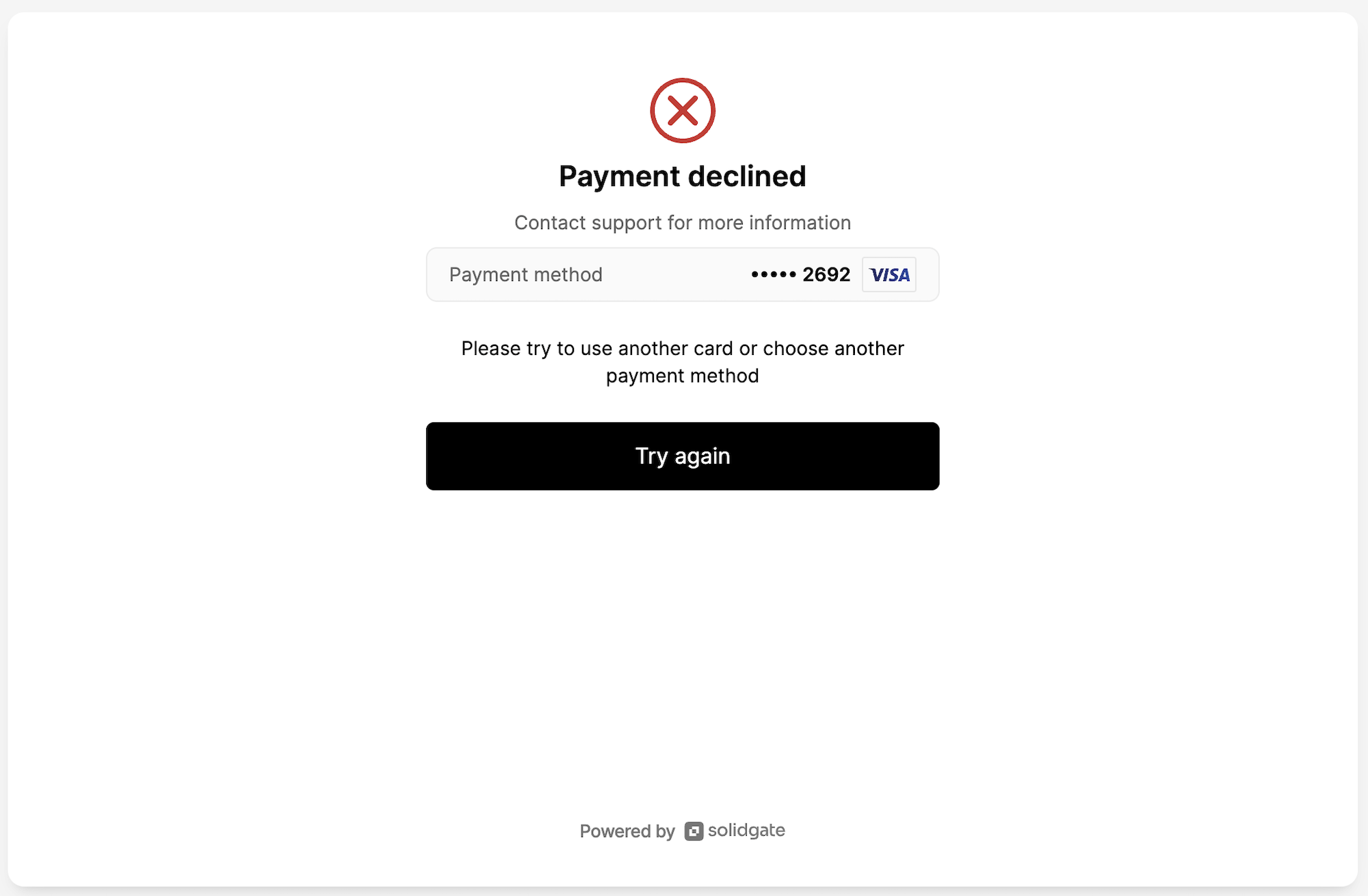 If a customer receives a decline, the Payment Link automatically allows a customer to try payment again.